Introduction
Baldur’s Gate 3 is undoubtedly one of the greatest recent role-playing games, heir to a long lineage that began with Baldur’s Gate, continued with Neverwinter Nights, and more recently Divinity: Original Sin.
As a Linux (Ubuntu) user, I wanted to install the GOG version of Baldur’s Gate 3 without using Windows. What should have been a simple installation turned into a technical exploration: Wine, Proton, Heroic Launcher, missing dependencies, environment variables, logs…
This guide is therefore not just an installation procedure. It’s also a recap of my experience: what worked, what didn’t, the errors I encountered, and above all, the final solution for getting Baldur’s Gate 3 (GOG version) to run on Ubuntu Linux.
The goal of this article is twofold:
- to enable other Linux players to install the GOG version of Baldur’s Gate 3,
- and to explain simply how Proton, Wine, and the Heroic Launcher work.
The system configuration used for this article is:
- OS: Ubuntu;
- GPU: AMD Radeon RX 6650 XT;
- Launcher: Heroic Games Launcher;
- Game Version: Baldur’s Gate 3 (GOG);
- Compatibility Tool: Proton GE.
If you are using a similar system, this guide should allow you to launch the game. Even if your system configuration is different, the principles explained here will remain the same.
If Proton isn’t installed beforehand
In this case:
Heroic can create a prefix with Wine, then you switch to Proton. However, the prefix isn’t always compatible;
- some DLLs are missing,
- some Visual C++ is missing,
- some .NET is missing,
- and then you end up having to do:
rm -rf ~/Games/Heroic/Prefixes/default/Baldurs\ Gate\ 3/| When Proton is installed | Result |
| Before game installation | Clean prefix → fewer problems |
| After game installation | Prefix probably broken |
| Broken prefix | Removing the prefix |
| Removing the prefix | Heroic recreate a clean Windows |
Regarding Wine/Proton Prefixes
When a Windows game is launched under Linux with Wine or Proton, a “prefix” is created.
A prefix is simply a folder containing a minimal Windows installation (C: folder, registry, libraries, etc.). Each game has its own prefix, which helps isolate dependencies and avoid conflicts between games.
If an installation goes wrong (missing dependencies, faulty Wine, faulty Proton), simply deleting the prefix and restarting the installation often provides a clean environment: rm -rf ~/Games/Heroic/Prefixes/default/Baldurs\ Gate\ 3/.
Heroic will automatically create a new prefix the next time the game is launched.
Heroic Game Launcher
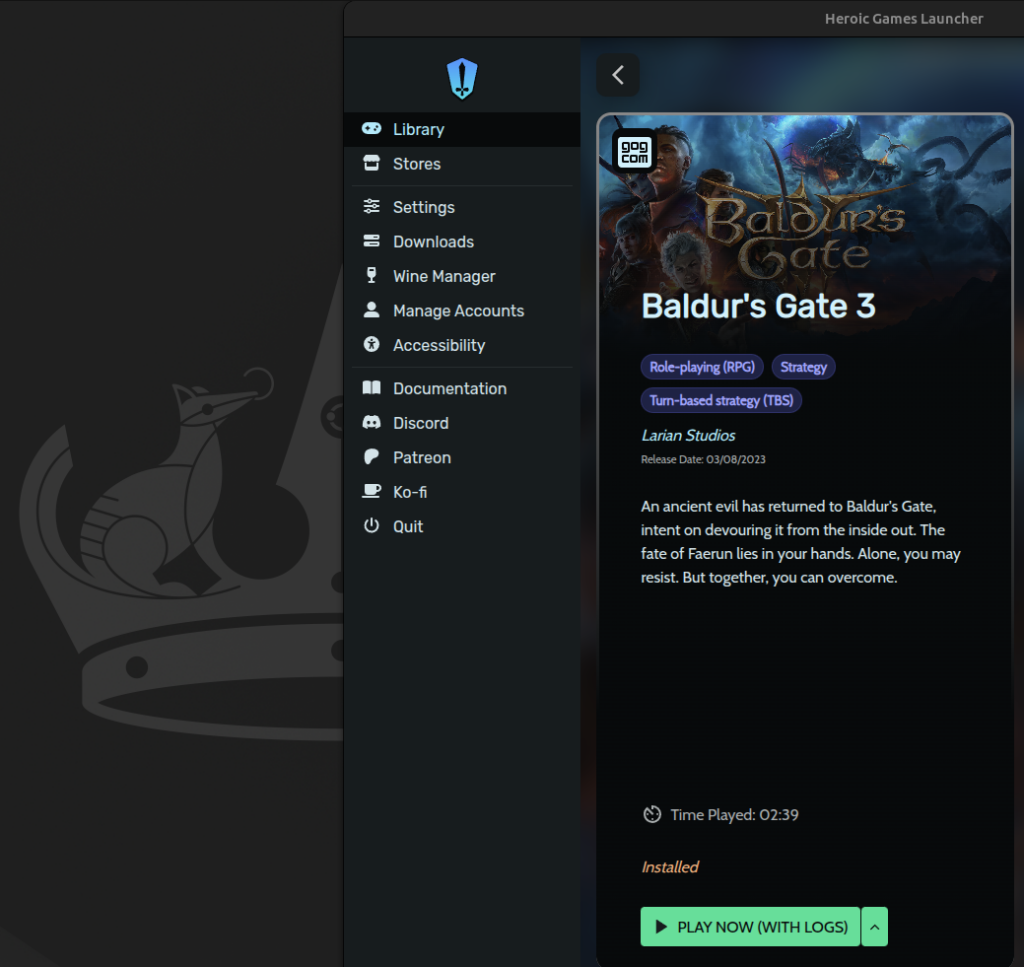
To install the GOG version of Baldur’s Gate 3 on Linux, I chose to use Heroic Games Launcher.
Heroic is an open-source game launcher that allows you to download and launch games from GOG and Epic Games, using Wine or Proton to ensure compatibility with Linux.
Heroic’s main advantage is that it greatly simplifies the use of Wine and Proton. Instead of manually configuring a Wine prefix, installing dependencies, and managing Proton versions, Heroic provides a graphical interface to manage everything cleanly.
In short, Heroic allows you to:
- connect to your GOG account,
- download games,
- choose the Wine or Proton version,
- easily configure launch options,
- and automatically manage Wine prefixes.
The system configuration used for this article is:
- OS: Ubuntu;
- GPU: AMD Radeon RX 6650 XT;
- Launcher: Heroic Games Launcher;
- Game Version: Baldur’s Gate 3 (GOG);
- Compatibility Tool: Proton GE.
Download Heroic Games Launcher.
Heroic can be installed in several ways, but the simplest method on Ubuntu is to use the AppImage. Go to the official Heroic Games Launcher website. Download the latest version in AppImage format.
Make the file executable: chmod +x Heroic-*.AppImage
Launch Heroic: ./Heroic-*.AppImage.
The advantage of the AppImage is that there is nothing to install on the system: everything is contained in a single file.
Connecting to GOG
On first launch:
choose Log in,
select GOG,
enter your GOG credentials,
and authorize Heroic to access your library.
Once connected, all GOG games will appear in Heroic. This is where you can install Baldur’s Gate 3.
Installing Proton GE from Heroic
Before installing the game, it is highly recommended to install a recent version of Proton, specifically Proton GE (Glorious Eggroll), which includes many fixes not present in the official Proton version.
In Heroic:
Go to Wine Manager.
Proton tab.
Download GE-Proton (latest).
Wait for the download and installation to complete.
Proton GE is often required for recent games like Baldur’s Gate 3.
Wine vs Proton (quick explanation)
At this point, it is useful to understand the difference between Wine and Proton:
For games → use Proton
For Windows applications → use Wine
Baldur’s Gate 3 works better with Proton GE than with classic Wine.
| Tool | Role |
| Wine | Allows you to run Windows programs under Linux |
| Proton | Modified version of Wine by Valve, optimized for games |
| DXVK | Translates DirectX 9/10/11 into Vulkan |
| VKD3D | Translates DirectX 12 into Vulkan In practice |
End of chapter.
At this point, Heroic Games Launcher is installed, connected to GOG, and Proton GE is installed. We can now proceed to install Baldur’s Gate 3.
Installing Baldur’s Gate 3
Once Heroic Games Launcher is installed and Proton GE is configured, you can install Baldur’s Gate 3 from the GOG library.
In Heroic, after logging into your GOG account, Baldur’s Gate 3 will appear in the list of available games. Simply click Install to begin the download. Choosing the Installation Folder During installation, Heroic will ask where to install the game. By default, games are installed in a folder like: ~/Games/Heroic/
Baldur’s Gate 3 is a very large game.
You will need approximately: 145 GB for the game itself, additional space for the Wine/Proton prefix, temporary space during installation, and a minimum amount of space for Linux to continue running.
It is recommended to have at least 200 GB of free space before starting the installation. During installation, check this, or once installed, use the suggested rm command and check this: Automatic Proton Prefix Creation. On the first launch of the game, Heroic will automatically: create a Proton prefix, install certain Windows dependencies (this is important; you should see DLLs, corefont, and .NET components. If you see at least one, you’re ready to play soon), and configure the game’s Windows environment. The game installation time depends on your internet connection (but with 143 GB, it’s unlikely to be instantaneous). It’s important to let all these installations complete. If a Wine library is missing, review the prefix step (using the rm command). Then restart the game so that Heroic can recreate a clean environment.
First Launch:
On the first launch: the game may take some time to start. Proton may be compiling shaders, and the screen may remain black for a while. Do not close the game too quickly on the first launch. And above all, don’t expect it to launch on the first try under GOG (don’t panic, read on).
Optimization for AMD Cards
If you are using an AMD graphics card with Mesa (RADV) drivers, you can add:
| RADV_PERFTEST | aco |
| DXVK_ASYNC | 1 |
These options improve: performance, shader compilation, and game smoothness.
Configuring Heroic for Baldur’s Gate 3
Once Baldur’s Gate 3 is installed, the game doesn’t always launch correctly on the first try.
It’s necessary to properly configure Heroic, Proton, and the executable to launch. This step is probably the most important in this guide.
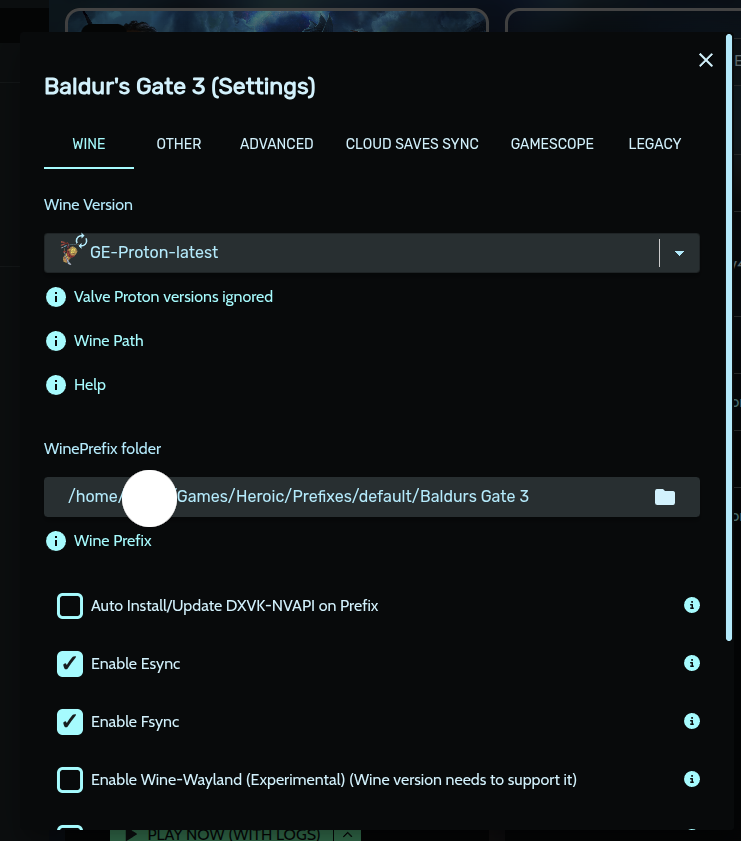
Choosing the correct Proton version in Heroic:
Open the game settings.
Wine table game settings.
Choose GE-Proton (latest). Proton GE includes specific patches for many recent games and generally works better than Wine or standard Proton for Baldur’s Gate 3.
Enable Esync and Fsync In the Wine tab: Enable Esync Enable Fsync (if available) These options improve performance and thread management.
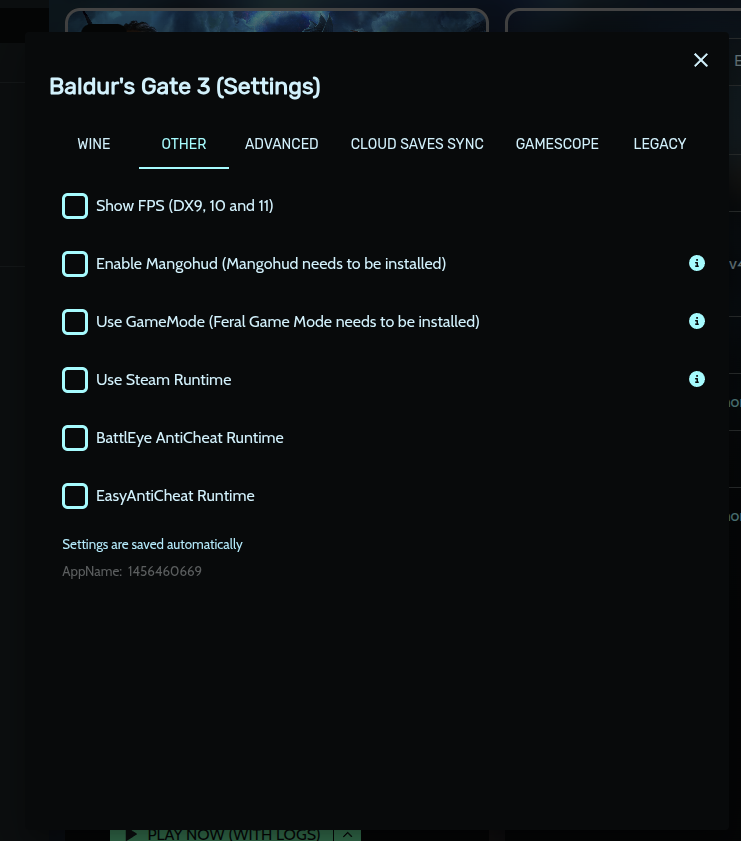
Other table game settings.
Disable EasyAntiCheat
Disable BattlEye
Baldur’s Gate 3 doesn’t need them, and these options can prevent the game from launching.
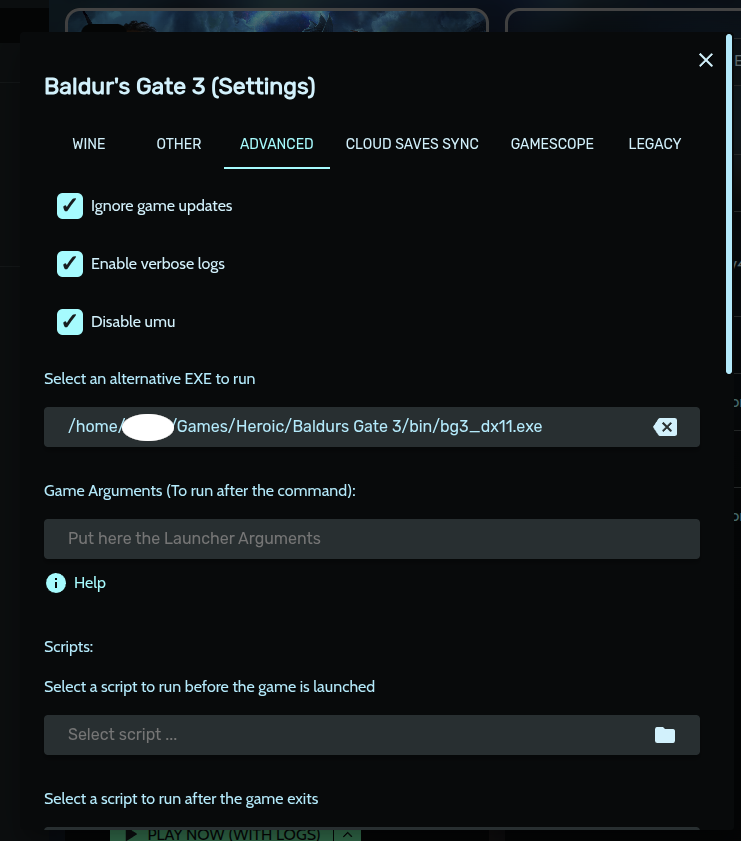
Advanced table game settings.
Go to Advanced. Click on Select an alternative EXE to run.
Choosing the correct executable:
In the game settings:
Navigate to the folder and choose:
~/Games/Heroic/Baldur’s Gate 3/bin/bg3_dx11.exe.
| File | Role |
| bg3.exe | Vulkan version |
| bg3_dx11.exe | Direct X11 version |
| LariLauncher.exe | Larian Launcher |
The DirectX 11 version (bg3_dx11.exe) is generally more stable under Linux, as it uses DXVK (DirectX → Vulkan), which works very well with Proton.
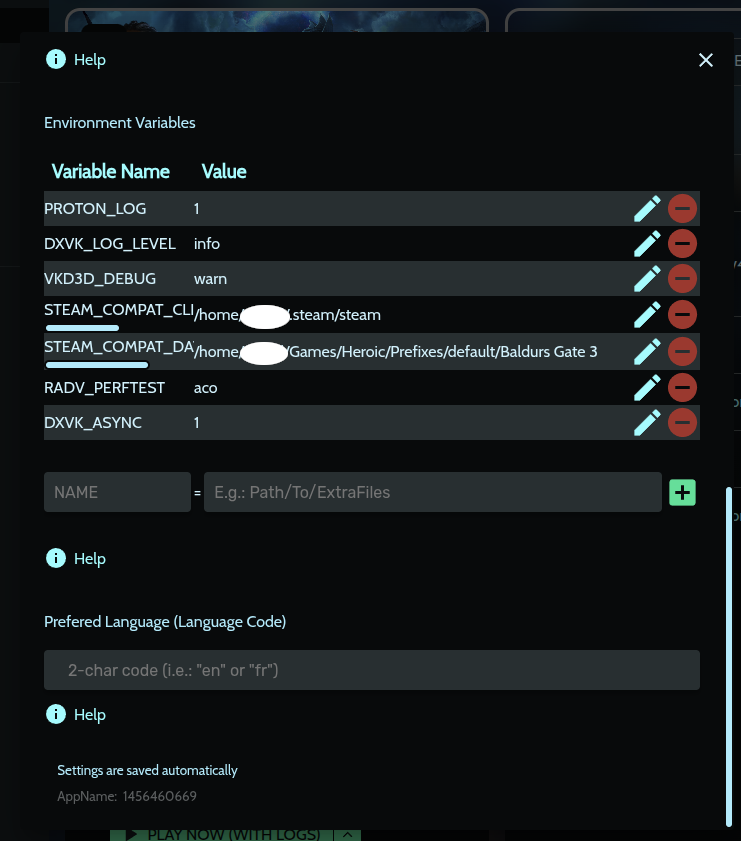
Important : Environment Variables
In some cases, Proton doesn’t automatically find the Steam environment required to run. You then need to add two environment variables in Heroic.
In Advanced → Environment Variables, add:
| STEAM_COMPAT_DATA_PATH |
| /home/USER/Games/Heroic/Prefixes/default/Baldurs Gate 3 |
| STEAM_COMPAT_CLIENT_INSTALL_PATH |
| /home/USER/.steam/steam |
Replace USER with your Linux username. These variables allow Proton to:
find the game prefix
find the necessary Steam libraries.
Without these variables, the game may not launch, or may launch an incorrect executable (make sure that Steam run even without account).
Recommended Configuration (Summary)
| Parameter | Value |
| Wine | GE-Proton |
| Alternative EXE | bg3_dx11.exe |
| Esync | ON |
| Fsync | ON |
| EasyAntiCheat | OFF |
| BattleEye | OFF |
| STEAM_COMPAT_DATA_PATH | Proton Prefix path |
| STEAM_COMPAT_CLIENT_INSTALL_PATH | Steam path |
| RADV_PERFTEST | aco |
| DXVK_ASYNC | 1 |
First Launch
On the first launch: the game may take several minutes to start. Proton compiles shaders, the screen may remain black for a while, and the CPU and GPU may be heavily used. It is important to wait and not close the game too quickly. One last note: even though the game is on GOG, you still need to install and launch Steam. You don’t need to log in, just have it running. (That’s for the surprise!)
Simplified Troubleshooting – When the Game Won’t Launch
The game still won’t launch despite all your efforts! Tough luck… But if you’ve seen or missed some of the things in this article, you’ll most likely be able to install it.
Here are the keys:
- 1. Enable logs
- 2. Relax, installing Baldur’s Gate 3 is already part of the process.
- 3. Make sure your prefix is correct. If you haven’t seen anything, use the ‘rm’ command! (much simpler and more effective than Winetricks)
- 4. Make sure you have Steam installed and launched. (You don’t even need to log in)
- 5. Start reading the logs, then share this with an AI chatbot. (You’ll even end up guessing which step failed)
- 6. Obviously, check if your computer is plugged into the power outlet… (then the variables…).
Enable and check Proton logs.
When the game won’t launch, the first thing to do is enable Proton logs.
In Heroic → game settings → Environment Variables, add:
PROTON_LOG=1.
Then launch the game. Proton will create a log file in your home directory: ~/steam-n.log. The number corresponds to the game’s identifier.
To read the log:
less ~/steam-n.logTo search for errors:
cat ~/steam-n.log | grep -i error
cat ~/steam-n.log | grep -i fail
Proton logs are often the only way to understand why the game won’t launch. After each new attempt, delete the log file to get a fresh one. Good idea about grep! 😉
Understanding How It Works
Installing a Windows game on Linux might seem complex, but in reality, the principle relies on a few key tools: Wine, Proton, DXVK, and prefixes. Understanding these elements makes troubleshooting easier when something doesn’t work.
Wine: Running Windows on Linux
Wine, Is Not an Emulator, is a program that allows you to run Windows applications on Linux. Unlike a virtual machine, Wine doesn’t simulate a complete computer: it translates Windows calls into Linux calls in real time. Finally, to ensure Windows software runs correctly, Wine also creates a minimal Windows environment in a folder called a prefix.
Proton: Wine Optimized for Games
Proton is a modified version of Wine developed by Valve to run Windows games on Linux via Steam. It adds several important components:
| Added Component | Role |
| DXVK | DirectX 9/10/11 → Vulkan |
| VKD3D | DirectX 12 → Vulkan |
| FAudio | Audio |
| Steam Runtime | Steam Libraries |
| Libraries Esync / Fsync | CPU Optimization |
In summary, Proton often performs better than Wine for games.
DXVK and Vulkan
Windows games generally use DirectX, which doesn’t exist on Linux. DXVK is a library that translates DirectX into Vulkan, a Linux-compatible graphics API. It’s thanks to DXVK that game performance on Linux is often very good.
What is a prefix?
A Wine (WINEPREFIX) /Proton (STEAM_COMPAT_DATA_PATH) prefix is simply a folder containing a minimal Windows installation.
Example:
Prefixes/
└── Baldur’s Gate 3/
├── drive_c/
│ ├── Program Files/
│ ├── windows/
│ └── users/
├── dosdevices/
├── system.reg
└── user.reg
This folder can be viewed as: A virtual Windows C: drive stored within a Linux folder. Each game has its own prefix, which allows for isolation (and eliminates compatibility issues between games).
Why Steam is necessary even for a GOG game
Proton is developed by Valve for Steam and relies on certain libraries provided by Steam (Steam Runtime). Even for a GOG game launched via Heroic, Proton may require: Steam libraries, the Steam Runtime, and the Steam installation folder.
End of Chapter.
Understanding these elements helps to better diagnose problems when the game fails to launch. In most cases, the problems stem from either the prefix, Windows dependencies, the Steam Runtime, or Proton’s configuration.